



It often starts with a gut feeling. You know your computer, and suddenly, it's just… off. Maybe it’s sluggish, apps are crashing, or weird pop-ups are cluttering your screen. That feeling is your first line of defense. Learning how to spot these unexpected changes in performance and behavior is the key to catching an infection before it does real damage.
Recognizing the First Warning Signs of an Infection
Spotting malware early isn’t usually about a single, dramatic “you’ve been hacked” moment. It’s more like noticing a pattern of small, strange behaviors. Too many people brush these off as simple glitches, but that’s a mistake. These little annoyances can be the canary in the coal mine, signaling a much bigger security problem brewing under the surface.
Think about it: that once-zippy machine that now takes forever to boot up or struggles to open a simple document? That's a classic sign. Malware often hogs system resources like CPU and RAM while it works in the background, causing that frustrating slowdown.
Common Performance and Behavioral Clues
Sluggishness is just one piece of the puzzle. You also need to keep an eye out for other telltale signs of trouble. Are you seeing frequent, unexplained crashes or the dreaded "Blue Screen of Death"? This could mean malware is meddling with your system's critical files.
Sometimes it's not the computer itself, but how it's behaving. To help you sort out what's a potential virus versus a normal tech headache, here's a quick reference table.
Common Virus Symptoms and Their Likely Causes
| Symptom | Potential Virus Cause | Other Possible Causes |
|---|---|---|
| Sudden Slowdown | Malware running in the background, consuming CPU/RAM. | Not enough RAM, fragmented hard drive, too many startup programs. |
| Frequent Pop-Ups | Adware infection designed to generate ad revenue. | Aggressive website advertising, browser notification settings. |
| Browser Homepage/Search Engine Changed | Browser hijacker redirecting your traffic. | A legitimate software installation that bundled a toolbar. |
| Unexplained Network Activity | Spyware or a botnet communicating with a command server. | Background updates for Windows, cloud syncing (e.g., OneDrive, Dropbox). |
| Files Are Missing or Encrypted | Ransomware has locked your files. | Accidental deletion, hard drive failure, file system corruption. |
| Antivirus is Disabled | Advanced malware has actively disabled security software. | A failed software update, conflicting security programs. |
This table isn't exhaustive, but it's a great starting point. If you're seeing symptoms in the first column and can't find a simple explanation, it’s time to dig deeper.
The Scale of Modern Malware Threats
The need for this kind of vigilance has never been greater. Security firms are now flagging approximately 560,000 new malware threats every single day. That’s not a typo. This relentless assault is why malware was a key factor in a staggering 40% of all data breaches last year.
Trust your intuition. When your computer's behavior deviates from its normal baseline, don't ignore it. It’s always worth investigating.
This reality highlights the importance of cybersecurity for growing businesses, where even a seemingly minor infection can quickly escalate into a crisis. By recognizing these early warning signs, you give yourself a crucial head start. Acting fast is often the difference between a quick cleanup and a full-blown, costly data breach.
Using Built-In Tools for an Initial System Check

Before you even think about downloading specialized software, start with what your computer already has. Your operating system is equipped with some powerful tools for an initial investigation, and they’re surprisingly effective. These built-in utilities are your first line of defense and can often sniff out common threats without any extra cost or complicated setup.
Both Windows and macOS come with robust, integrated security that’s constantly being updated. For Windows users, the go-to is Windows Security, which includes the very capable Microsoft Defender Antivirus. On macOS, security is a bit more behind-the-scenes, handled by a combination of tools like XProtect, which works silently to block known malware, and the Malware Removal Tool (MRT).
The screenshot above shows the main dashboard for Microsoft Defender. The part you'll want to focus on is the "Current threats" section—it gives you an immediate status report on your system’s health.
Running a Comprehensive System Scan
Your first active step is simple: run a full system scan. A "quick scan" is fine for daily checks, but when you genuinely suspect an infection, you need to be much more thorough.
- On Windows: Go to Windows Security > Virus & threat protection > Scan options and select Full scan. Be patient. This can sometimes take over an hour, but it’s worth it. The scan will check every single file and running program on your machine.
- On macOS: While XProtect scans files automatically when you open them, it doesn't offer an on-demand "full scan" button. Apple’s approach relies more on prevention, so for a deep-dive scan, you'll generally turn to trusted third-party tools.
Running a full scan on your Windows machine gives you a clear baseline. If it comes back clean, your problem might not be malware after all. If it does find something, the tool will usually quarantine or remove the threat automatically and give you a detailed report on what it found and did.
Investigating Suspicious Processes
Malware can't do damage unless it's running, which means it will show up as an active process on your computer. This is where tools like Task Manager on Windows and Activity Monitor on macOS become your best friends.
Open up your system monitor and start hunting for anything that looks out of place. A classic red flag is a process with a strange, nonsensical name (like runme32.exe) or one that's eating up an absurd amount of CPU or memory. If you see a process name you don't recognize, a quick online search will often tell you if it’s tied to known malware.
A common trick I've seen is malware disguising itself with a legitimate-sounding name that's just slightly off, like
svch0st.exe(with a zero instead of an ‘o’). You have to pay close attention to the details when combing through your running processes.
Checking Your Startup Programs
Most viruses want to stick around, and the easiest way to do that is by adding themselves to your computer’s startup routine. This ensures the malware relaunches itself every time you turn on your machine.
Thankfully, both operating systems let you see and manage what runs at startup.
- Windows: Open Task Manager and click on the "Startup" tab.
- macOS: Head to System Settings > General > Login Items.
Look through the list of applications carefully. If you spot a program you don't recognize or know for a fact you didn't install, disable it immediately. Disabling it won't remove the virus, but it stops it from running, which is a critical first step toward getting things under control.
Using Advanced Scanners for a Deeper Look
So, you've run your built-in security tools, but something still feels off. This is a classic scenario. When you suspect a system is compromised but the initial scans come back clean, it's time to call in the specialists—more advanced, on-demand scanners.
Stubborn malware is specifically designed to evade the first line of defense. It burrows deep into your system, hiding from basic scans. This is where dedicated scanners really shine; they use different detection engines and methods to find what others miss. They go far beyond just matching files to a list of known viruses, using smarter techniques to spot malware that's new or disguised.
What Makes Modern Scanning So Effective?
Today's best scanners don't rely on a single trick. Instead, they combine several powerful approaches to create a much tighter security net. Think of it as a multi-layered investigation.
- Signature-Based Scanning: This is the old-school, tried-and-true method. It works like a digital fingerprint database, checking files for patterns (signatures) that match known malware. It’s incredibly fast and great for stopping common threats, but it can’t catch what it hasn't seen before.
- Heuristic Analysis: This is where the scanning gets smarter. Rather than looking for an exact match, it analyzes a file's code and structure for suspicious traits. For example, it might flag a program that tries to rapidly modify critical system files or cloak its own processes. It's looking for virus-like behavior.
- Behavioral Monitoring: This technique is all about action. It watches what programs do on your system in real time. If an application suddenly starts encrypting files or attempts to contact a known command-and-control server, behavioral monitoring will shut it down instantly, even if its signature is completely unknown.
Putting On-Demand Scanners to Work
When you're dealing with a suspected infection, getting a second opinion is standard procedure. I almost always recommend running a reputable on-demand scanner like Malwarebytes in these situations. These tools are designed to run alongside your primary antivirus without conflict, and they frequently catch threats the main software overlooked.
For the most effective scan, you'll want to run it in Safe Mode. When you boot your computer this way, it only loads the absolute essential drivers and files. This often prevents the malware from launching its own defenses, leaving it exposed and unable to fight back against the scan.
A quick word of caution: review your scan reports carefully. Advanced scanners can sometimes generate "false positives," flagging a legitimate program as malicious. If you're unsure about a flagged file, a quick search for the filename online will usually tell you if it's a real threat or just a harmless system component.
The Rise of AI in Threat Detection
Malware detection is getting a massive boost from artificial intelligence, and for good reason. Threats are becoming far more sophisticated. For instance, malware-free attacks that use fileless techniques jumped by 9.4% last year. These attacks live in your system's memory and don't use traditional virus files, which makes them practically invisible to signature-based scanners.
This is where AI comes in. AI-powered security systems can analyze massive amounts of system activity to spot the tiny, subtle anomalies that signal a fileless attack is underway.
To truly protect your network, you need robust, modern security solutions. A good place to start is by exploring the best antivirus software for small businesses to find a tool that aligns with your operational needs. For businesses in our local area, seeing why San Antonio businesses trust DefendIT Services for cybersecurity and IT solutions can offer a clearer picture of what a strong, localized defense strategy looks like.
Investigating Network Activity and System Logs
Sometimes, the clearest signs of an infection aren't found in a file scan but in the quiet conversations your computer has in the background. Modern malware, especially sneaky stuff like spyware and botnets, is designed to be invisible. Its one major giveaway? The network traffic it creates when it "phones home" to its command-and-control servers.
Learning to spot this suspicious chatter is a bit more advanced, but it's a critical skill for hunting down hidden threats. Your machine is always talking to the internet—syncing files, loading web pages, you name it. The trick is telling that normal activity apart from malicious connections.
Monitoring Your Network Connections
For Windows users, a fantastic starting point is right there in the operating system: the Resource Monitor. Just type it into the Start Menu. Once you have it open, click over to the "Network" tab, and you'll get a live look at every single process with an active internet connection.
So, what are you looking for? Keep an eye out for applications you don't recognize that are sending or receiving data. If you see a generic process name like svchost.exe or task.exe connecting to an unfamiliar IP address, that’s an immediate red flag. A quick search for that process name or IP can often tell you if it’s tied to known malware.
A classic malware tactic I've seen countless times is to send short, infrequent bursts of data to its home server. This helps it fly under the radar. You might not spot a constant data stream, but even a small, repeating connection from an unknown process is absolutely worth investigating.
This kind of manual check is your best bet for catching stealthy threats that are designed to quietly siphon off your data bit by bit.
Digging into System Logs for Clues
Beyond just network traffic, your system logs are a treasure trove of information. They record everything from minor application hiccups to major security events. They can look intimidating and dense, but knowing what to search for can uncover a well-hidden infection.
-
Windows Event Viewer: This built-in tool is the activity log for your PC. Focus your attention on the Security and System logs. Are you seeing a sudden flood of failed login attempts? That could signal a brute-force attack. What about unexpected services being installed in the System log? That’s a common way for malware to make sure it runs every time you start your computer.
-
macOS Console: On a Mac, the Console app does a similar job. I usually start by filtering for error messages or repeated crash reports from apps that used to be perfectly stable. Malware often messes with core system functions, causing instability that leaves a clear trail in these diagnostic reports.
Sifting through logs is a methodical process. You're rarely looking for a single smoking gun. Instead, you're trying to find a pattern of weird behavior that, when you put it all together, paints a clear picture of a system in trouble.
To help you get started, I've put together a quick reference table for spotting common red flags in your logs.
Log Analysis Quick Reference for Malware Detection
This table is a simplified guide to what you should be looking for in system logs, like the Windows Event Viewer, that might point to malware activity.
| Log Category (e.g., Security, System) | Suspicious Event to Look For | What It Could Mean |
|---|---|---|
| Security | Multiple failed login attempts in a short period. | A brute-force attack is trying to guess your password. |
| System | A new, unfamiliar service was installed and started. | Malware has created a service to ensure it runs automatically when the computer boots. |
| Application | An application repeatedly crashes without a clear reason. | Malware could be conflicting with or corrupting the application's files. |
| Security | Security settings (like the firewall) were suddenly changed. | A virus is attempting to weaken your system's defenses to allow external connections. |
Think of this table as a starting point. The key is to get familiar with what normal looks like on your systems, which makes it much easier to spot when something is truly wrong.
What To Do The Moment You Find a Virus
Finding a virus on your system feels awful, but what you do in the next few minutes is absolutely critical. Forget about trying to delete files or immediately running a dozen different scans. Your first priority isn't removal—it's containment.
The single most important thing to do is isolate the infected machine. Pull the network cable. Turn off the Wi-Fi. Cut it off from the rest of the world. This one simple move can stop a minor headache from turning into a full-blown network catastrophe by preventing the malware from spreading. It also severs the connection to its command-and-control server, so it can’t download more malicious tools or send your data out the door.
This is why active network monitoring is so important; it helps you spot the weird traffic patterns that are often the first sign of trouble.
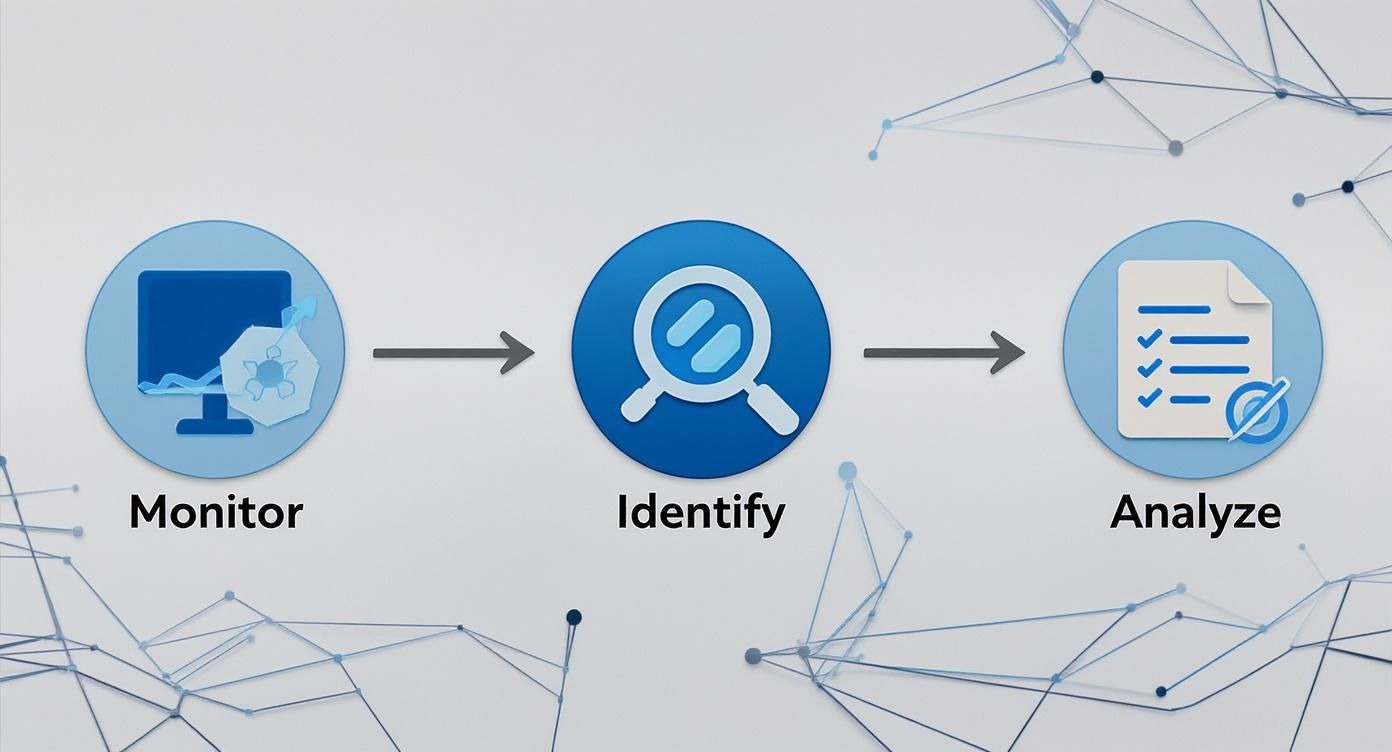
Containment and First-Response Triage
With the computer offline, you can start to stop the bleeding. If you're confident in what you're doing, you can open up Task Manager (on Windows) or Activity Monitor (on macOS) and kill any suspicious processes you spotted earlier. Just be careful—shutting down the wrong system process can cause more problems than it solves.
This is where you hit a fork in the road. Do you try to fix this yourself, or is it time to call in the experts?
On a personal computer at home, going the DIY route can be perfectly fine. But when it's a business machine—especially if it holds customer data or you're in a regulated industry—the stakes are much higher. A botched cleanup can leave malware remnants behind, just waiting to spring back to life.
Knowing When to Call for Backup
Calling a professional isn't admitting defeat; it's making a smart business move to protect your assets. It’s time to pick up the phone and get an expert involved if you find yourself in any of these situations:
- You've Been Hit With Ransomware: If your files are encrypted and you see a ransom note, stop. Don't touch anything. Trying to remove the virus yourself can corrupt the encrypted files, making them impossible to recover even if you have the key.
- You Suspect a Data Breach: Is there any sign that sensitive information—like client PII or company financial records—was accessed or stolen? You need a forensic team to determine the extent of the damage and guide you through the proper incident response.
- You're in a Regulated Industry: If you're in healthcare (HIPAA), finance, or another regulated field, a security incident isn't just a technical problem. It's a compliance event with specific legal requirements for reporting and remediation.
In these cases, a managed security services team can properly neutralize the threat, preserve digital evidence for investigation, and walk you through your recovery options. This is exactly why every San Antonio business needs managed IT and cybersecurity services before disaster strikes. After the dust settles, you'll need to implement practical defense strategies for preventing computer viruses to keep it from happening again.
A Few Common Questions About Virus Detection
When you're in the thick of a potential virus situation, a lot of questions pop up. Let's tackle some of the most common ones I hear from clients, with straight answers to give you a bit more clarity.
Can a Virus Be Detected If My Antivirus Is Off?
It's possible, yes, but you're essentially fighting with one hand tied behind your back. You might still notice the classic red flags we talked about earlier—your machine suddenly slows to a crawl, bizarre pop-ups start appearing, or you see files you don't recognize.
The problem is, today's malware is often built for stealth. It’s designed to slip in quietly and avoid making a scene. So while you might catch the obvious symptoms, the only way to be certain is to run a scan with a solid security tool. Relying on observation alone is a gamble, and you could easily miss something nasty lurking in the background.
Does Resetting My Computer Get Rid of All Viruses?
For the most part, a full factory reset—the kind that wipes your drive clean and reinstalls the operating system from scratch—is a pretty effective nuke. It will obliterate the vast majority of common malware like adware, spyware, and most trojans. You're starting over with a clean slate.
But it's not a silver bullet.
I've seen a few rare cases where highly sophisticated malware, particularly nasty rootkits, have survived a standard reset. These advanced threats can worm their way into your system's firmware, like the BIOS, which a typical OS reinstall doesn't touch. It’s uncommon, for sure, but not impossible.
How Do I Tell the Difference Between a Virus and a Simple Software Bug?
This one's tough because the symptoms can look frustratingly similar. A crashing app or a frozen screen could be either one. The real tell is the scope of the problem.
- A software bug is usually contained. Think of a single program that crashes every time you click a specific button—that’s a classic bug. The rest of your system works just fine.
- A virus, on the other hand, tends to cause chaos everywhere. You'll notice performance hits across multiple apps, strange pop-ups on your desktop (not just your browser), security settings that seem to change themselves, and network traffic that you can't explain.
A good rule of thumb: if you’ve reinstalled the app and the problem is still there and affecting other parts of your system, it’s time to start thinking about malware.
Will I Get a Warning If My Computer Has a Virus?
Sometimes, but don't count on it. Your antivirus or built-in tools like Windows Security are designed to throw up a flag when they catch something. You'll hopefully see a notification like "Threat Blocked" or "Malware Detected."
The scary part is that many viruses are specifically coded to bypass these alarms. They might disable your security software or use attack methods that are too new to be in the signature databases. This is exactly why you can't just "set it and forget it." Knowing the manual signs and symptoms of an infection is still one of your most powerful defenses.
When you've tried everything and still can't get a handle on it, bringing in a professional is the surest way to know your systems are clean. Defend IT Services provides expert cybersecurity and managed IT for businesses in and around San Antonio, protecting them from the kinds of advanced threats we've talked about. Secure your business by visiting us at https://defenditservices.com.