

When your laser printer starts acting up, the root cause is often far simpler than you might imagine. In my experience, nearly every issue boils down to one of three things: a physical hardware problem (like a paper jam or dirty part), a software glitch (think corrupted drivers or a stuck print queue), or a network connectivity issue that’s stopping your computer from talking to the printer.
Figuring out which of these buckets your problem falls into is the single most important step. Get that right, and you're already halfway to a fix.
Your First Steps in Diagnosing Printer Issues
The moment a printer goes down, especially in a busy office, panic can set in. The temptation is to start randomly clicking buttons and restarting everything in sight. Resist that urge. A methodical approach will save you a ton of time and keep you from accidentally making things worse.
Think of yourself as a detective. Your first job is to gather clues from the printer itself to correctly categorize the issue before you even think about trying a solution. Is the machine itself broken, is it a communication breakdown with the computer, or is the network to blame?
This flowchart can help you visualize the process, guiding you from the initial symptom to the most likely cause.
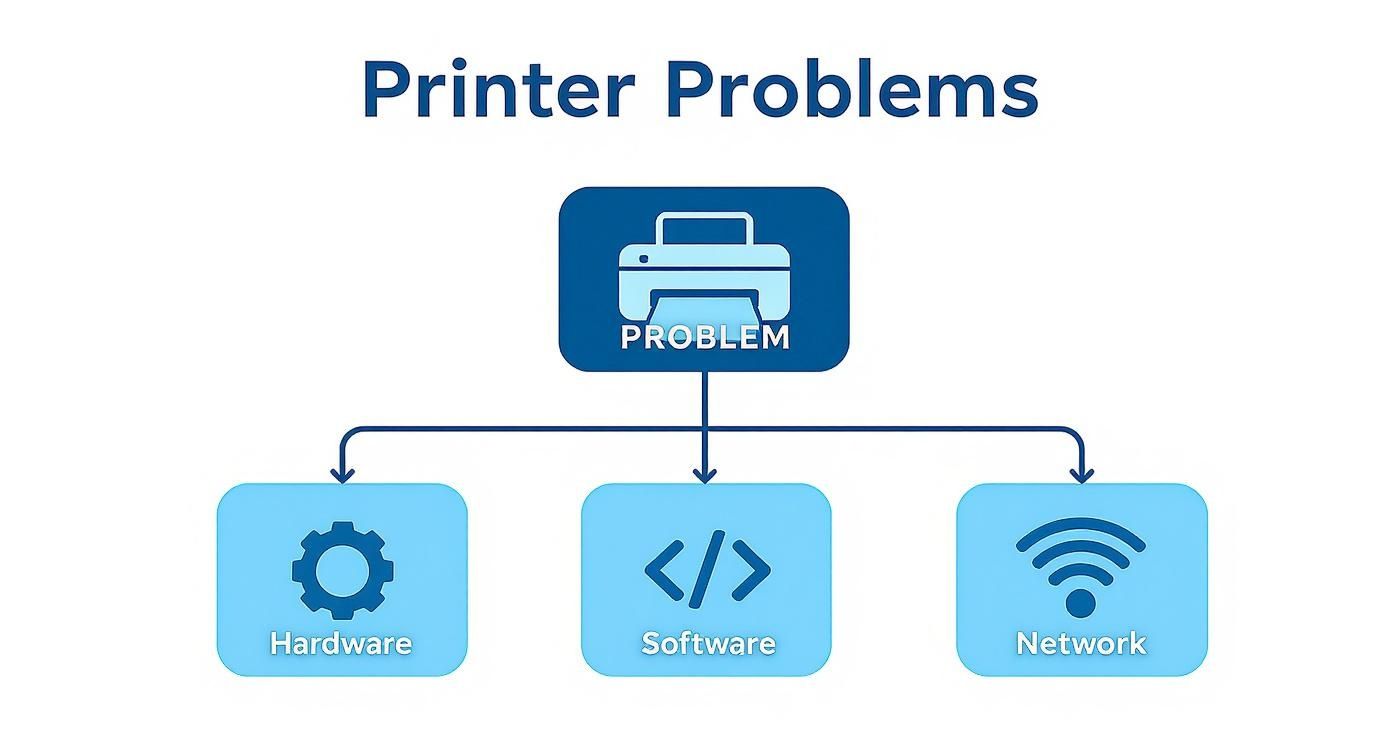
Following this kind of logic helps you quickly decide whether you should be checking the toner and paper path (hardware), investigating the print queue and drivers (software), or looking at the Wi-Fi connection and printer status (network).
Understanding the Clues Your Printer Gives You
Your printer is constantly trying to tell you what's wrong. Those blinking lights, cryptic error codes on the little screen, and even the strange noises it’s making are all valuable pieces of evidence. Don't ignore them.
A specific sequence of flashes often corresponds to a precise error you can look up in the user manual. For instance, a blinking toner light is a dead giveaway for a hardware signal, while a "Spooler Subsystem App has stopped working" error on your PC points directly to a software problem.
Key Takeaway: Before you do anything else, just stop and observe. Write down the exact error message. Note the pattern of any blinking lights. Listen for any weird sounds. This initial diagnosis is the most critical part of the whole process.
To help you get started, here's a quick reference table to match common symptoms with their likely sources.
Common Laser Printer Symptoms and Likely Causes
| Symptom | Potential Cause Category | First Thing to Check |
|---|---|---|
| Streaks, lines, or faded print | Hardware | Toner cartridge level and drum unit condition |
| Paper jams or misfeeds | Hardware | Paper path for obstructions; paper tray alignment |
| "Printer Offline" message | Software / Network | Printer's connection to the network; print queue status |
| Garbled or gibberish text | Software | The printer driver on your computer |
| Nothing happens when you print | Software / Network | Print queue for stuck jobs; network connectivity |
| Error lights are blinking | Hardware | The user manual to decode the specific error |
This table isn't exhaustive, but it’s a great starting point for focusing your efforts where they'll have the most impact.
How Remote Work Changed the Game
The modern workplace has also thrown a few new curveballs into the mix. The massive shift to remote and hybrid work completely changed how businesses use—and neglect—their printers.
The COVID-19 pandemic, for example, caused office printing volumes to plummet by 13.7%, while the home printer market exploded with a 12% increase in sales. Brother, a huge player in the laser printer space, reported a staggering 30% jump in single-color and a 42% increase in color laser printer sales in mid-2020. This sudden demand, coupled with global supply chain chaos, led to shortages of toner and parts, which naturally contributed to more hardware failures.
For more in-depth guides, you can always find plenty of additional troubleshooting articles and printer maintenance tips to dig deeper into specific issues.
Categorizing the Problem: Hardware, Software, or Network?
Once you've gathered your clues, it's time to sort the problem into one of those three main buckets. This simple classification will dictate your next moves and keep you from chasing dead ends.
Hardware Issues: These are physical problems with the printer itself. This bucket includes everything from the obvious paper jams and low toner alerts to more subtle things like streaks on the page caused by a dirty fuser or a failing drum unit. If you can see, hear, or touch the problem, it’s probably hardware.
Software and Driver Issues: These problems live on your computer or the print server. Classic examples include print jobs getting stuck in the queue forever, the printer stubbornly showing as "offline" even when it’s on, or documents printing out as a page of random symbols. This stuff often crops up right after a system update or when a printer driver gets corrupted.
Network Issues: This category is specifically for printers connected to your office via Wi-Fi or an Ethernet cable. If suddenly nobody in the office can print, but the printer itself isn't showing any errors, the network is your prime suspect. It could be as simple as a lost wireless connection or an incorrect IP configuration.
Solving Poor Print Quality: Smudges, Streaks, and Fading
It's a classic office frustration. You grab a critical document from the printer, only to find it covered in ugly streaks, random smudges, or faded, unreadable text. This is hands-down one of the most common laser printer problems we see.
While it’s easy to immediately blame the toner cartridge, the real culprit could be one of several different parts. The trick is learning to read the signs. The specific pattern of a streak or the location of a smudge is a clue. For example, a smudge that repeats at the same interval down the page almost always points to something on a roller or a damaged drum. Widespread fading, on the other hand, is a much stronger signal that your toner is low.
Diagnosing the Source of the Imperfection
Before you start pulling your printer apart, take a moment to really look at the bad printout. The defect itself will tell you where to start your investigation.
Toner Cartridge Issues: This is the usual suspect for a reason. A faulty or nearly empty cartridge is a primary cause of fading, light spots, and even gray backgrounds. I’ve also seen plenty of poorly made third-party cartridges leak toner, which creates those random, messy splotches.
Dirty or Damaged Drum Unit: The photosensitive drum is the part that actually transfers the toner image to the paper. If that drum has fingerprints, scratches, or caked-on toner, those flaws will show up on every single page. They usually look like sharp, repeating lines or dots.
Failing Fuser Assembly: The fuser is the heating element that melts the toner powder onto the paper. If it’s not getting hot enough or its rollers are worn out, the toner just sits on the surface. You’ll know it’s the fuser if you can easily smudge or wipe the print right off the page with your finger.
Figuring this out turns you from a frustrated user into an effective troubleshooter. It’s the difference between blindly swapping expensive parts and making a targeted, quick fix. For a deeper dive with great visual examples, this guide on fixing common print quality problems is an excellent resource.
Cleaning Key Components for Clearer Prints
Once you have a good idea of the cause, a careful cleaning is often all it takes. A little bit of maintenance goes a long way. Just remember to always power down and unplug the printer before you start poking around inside. Safety first.
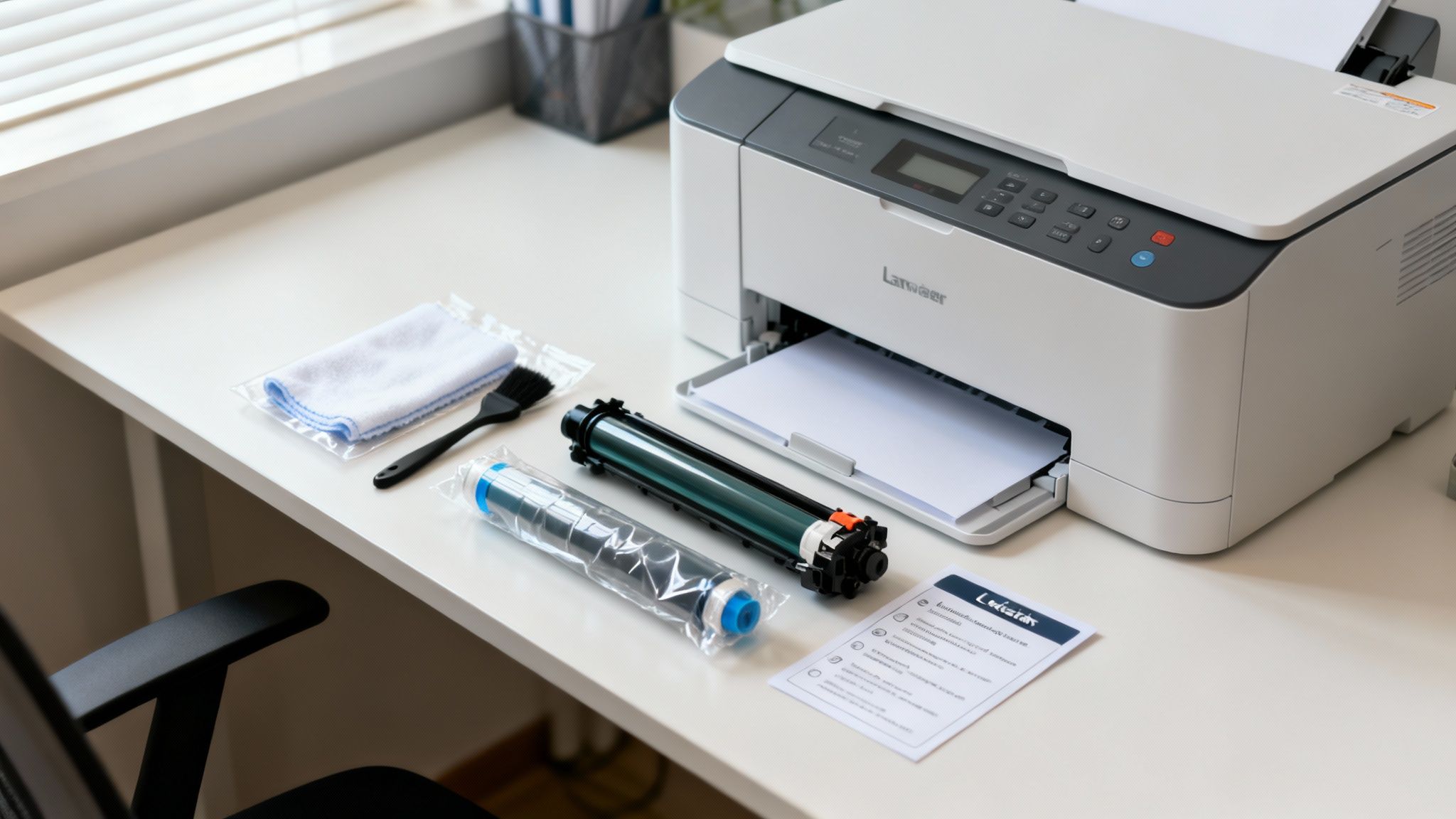
Start by gently removing the toner and drum unit—in many printers, they come out as one piece. Look for the drum itself; it’s usually a shiny green or blue cylinder. Be careful not to touch its surface with your bare hands, as the oils from your skin can cause damage. A soft, lint-free cloth is perfect for gently wiping away any visible dust or stray toner.
Next, find the fuser unit. It's usually near the back where the paper exits and will be warm if the printer was just running. Check its rollers for any debris or toner that’s been baked on. If you see buildup, you can carefully clean it with a lint-free cloth lightly dampened with isopropyl alcohol, but only after the unit has completely cooled down.
Pro Tip: Look for a small plastic tab on the drum unit, often colored green or blue, especially on Brother printers. That's the corona wire cleaner. Just slide that tab back and forth a few times. It’s amazing how often this simple action clears up vertical streaks instantly.
The Great Debate: OEM vs. Third-Party Toner
When you do need to replace the toner, you’ll face the classic choice: pay up for an Original Equipment Manufacturer (OEM) cartridge or save some money with a third-party option?
The cost savings from remanufactured or compatible cartridges can be really tempting, but in my experience, they are a frequent source of print quality headaches. The data backs this up. According to repair specialists at Metrofuser, about one-third of all printer service calls are related to image quality problems, and the vast majority trace back to the toner cartridges themselves.
While some good third-party cartridges are out there, the risk of leaky cartridges, poor toner formulation, and premature failure is just significantly higher. For business-critical printing where you can't afford reprints or downtime, sticking with OEM cartridges is often the best way to prevent these problems from happening in the first place.
How to Handle Paper Jams and Hardware Errors
Nothing brings productivity to a screeching halt like a paper jam. Your first instinct might be to yank the crumpled sheet out, but that’s a great way to damage sensitive internal parts and create even bigger laser printer problems printing down the road.
Successfully clearing a jam isn't just about getting the paper out; it's about understanding why it happened in the first place. Think of it this way: a single jam is an event, but recurring jams are a symptom of a deeper issue. Let's get to the root of it.

The Right Way to Clear a Paper Jam
When that error light starts blinking, just take a breath. The trick is to follow the paper’s intended path through the machine. Trying to pull it out backward is a recipe for broken sensors and gears.
First things first, power down and unplug the printer. This is a non-negotiable safety step. It eliminates any electrical risk and stops any parts from suddenly moving while your hands are inside.
Next, open up all the access doors and trays you can find. Most printers have helpful diagrams inside that show you the entire paper path and common spots where jams occur.
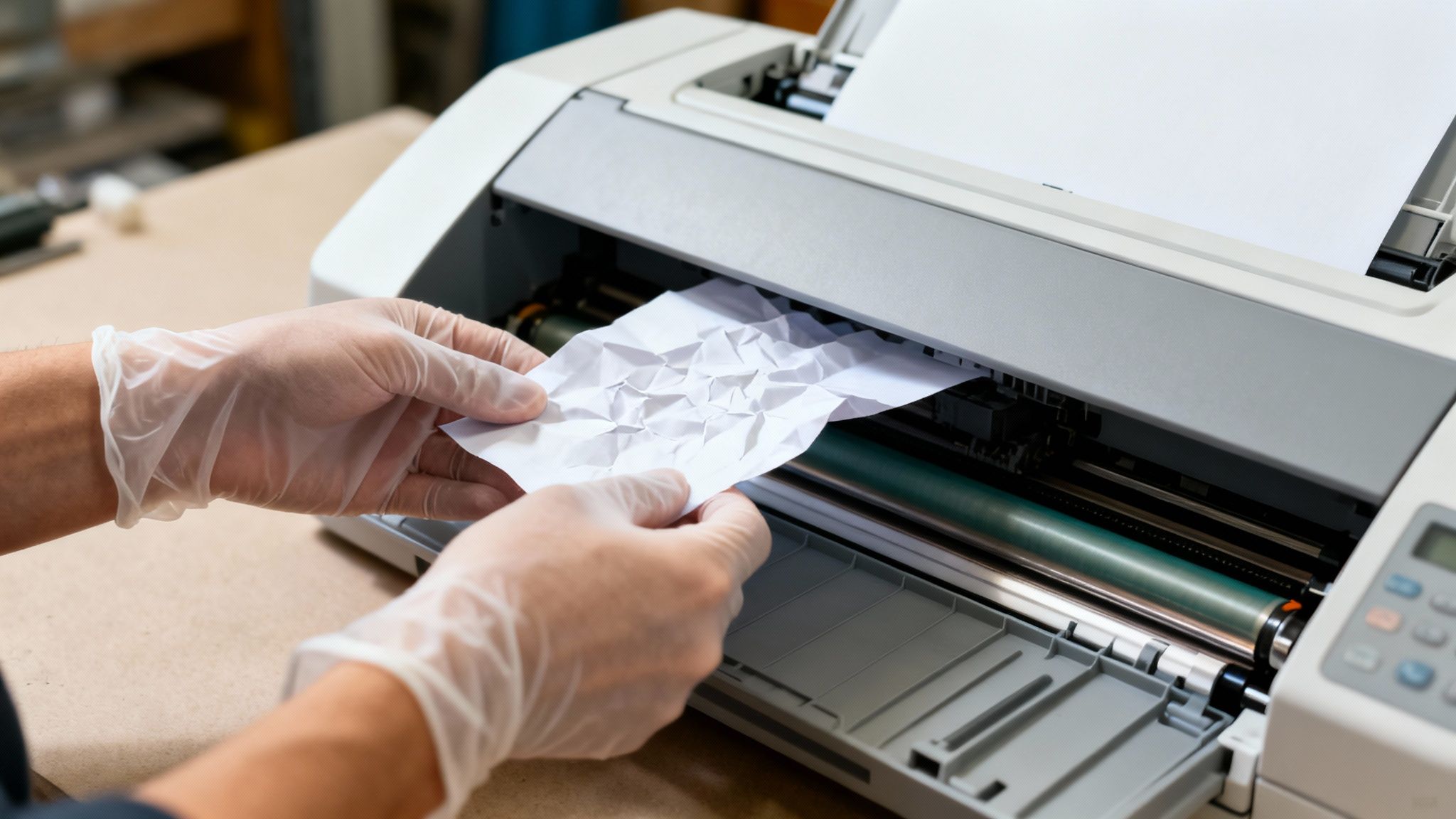
Once you’ve located the leading edge of the stuck paper, use both hands to pull it slowly and evenly. Follow the direction it was meant to travel. If you feel any serious resistance, stop. There’s probably another access point you can use to free it up without tearing it.
After you get the main sheet out, play detective. Carefully inspect the entire paper path for any small, torn-off scraps. Even a tiny corner of paper left behind is guaranteed to cause the very next page to jam.
Investigating the Root Causes of Jams
With the immediate crisis averted, it's time to figure out what went wrong. In my experience, constant paper jams almost always trace back to one of three things: the paper, the tray, or worn-out hardware.
- The Wrong Paper: Are you using paper that’s too thick, too glossy, or even just slightly damp? A printer’s rollers are designed for a specific paper weight (measured in GSM), and if the paper is wrong, they just can't get a good grip.
- A Badly Loaded Tray: Don’t just stuff paper in there. An overfilled tray will cause misfeeds every time. The same goes for misaligned paper guides—if they're too loose, the paper feeds in at an angle and jams. The stack should be neat and fit snugly between the guides, not crammed in.
- Worn-Out Rollers: Those little rubber rollers that grab the paper? They don't last forever. Over time, they become smooth, dry, and cracked, losing their ability to feed paper reliably.
Expert Tip: If you hear your printer trying and failing to pick up a sheet from the tray—that whirring sound with no action—it's a classic sign the pickup roller is worn. On many office printers, you can easily access this roller and give it a quick clean with a lint-free cloth and some isopropyl alcohol. This can restore its grip and buy you some time before it needs to be replaced.
Decoding Common Hardware Error Messages
Beyond simple jams, your printer might display cryptic error messages that point to more serious trouble. Knowing how to interpret these codes can save you a lot of time and prevent you from attempting a repair that's best left to a professional.
Some issues are a quick fix, but others are a clear sign to call for backup.
Common Error Codes and Their Meanings
| Error Message | What It Means | DIY Fix or Pro Call? |
|---|---|---|
| Fuser Error | The fuser is the heating element that melts toner onto the paper. This error means it has failed or is overheating. | Pro Call. Fusers are high-voltage, high-heat components. They are dangerous to handle without proper training. |
| Motor Failure | A critical internal motor that drives the paper or toner assembly has stopped working. | Pro Call. This is major surgery, requiring disassembly and replacement of core mechanical parts. |
| Scanner Error | On a multifunction device, this means the scanner lamp, motor, or sensor has a problem. | DIY Fix (Sometimes). A simple power cycle often clears a temporary glitch. If the error persists, it needs professional service. |
These types of errors often signal that a major component has reached the end of its life. While it’s tempting to try a DIY solution for everything, messing with parts like the fuser or internal motors can cause permanent, costly damage to the printer.
When It’s Not the Printer at All: Software, Drivers, and Network Headaches
Sometimes, the most infuriating printing problems have nothing to do with the actual printer. You can spend an hour wrestling with toner cartridges and cleaning rollers, but if the issue is a silent breakdown in communication between your computer and the printer, you’re simply looking in the wrong place.
These invisible culprits—corrupted drivers, network hiccups, and stalled software services—are often the real reason a printer just decides to stop cooperating. If your printer suddenly reports it's "offline" even though it's clearly on and connected, or print jobs vanish into a digital black hole, the problem is almost certainly on your computer.
Doing a Clean Sweep of Your Printer Drivers
Think of a printer driver as a translator—it turns your document into a language the printer can understand. When this little piece of software gets corrupted, often after a routine OS update, that translation fails. Just hitting "update driver" often isn't enough; the best fix is a full, clean reinstallation.
This means doing more than just clicking "remove device." To truly solve the problem, you have to get rid of every last trace of the old, faulty software so it can’t interfere with the new installation.
The Right Way to Reinstall a Driver:
- Unplug the Printer: First, disconnect the printer from your computer or network. This stops your OS from jumping the gun and trying to automatically reinstall the old driver you're trying to get rid of.
- Uninstall All Related Software: Head over to "Apps & features" (Windows) or "Applications" (macOS) and get rid of everything associated with your printer brand—not just the driver, but also any scanner software or management toolboxes.
- Remove the Device Profile: Now, go to your "Printers & scanners" settings, find the troublesome printer, and select "Remove device."
- Purge the Driver Cache (Windows): This is the step most people miss. Search for and open the "Print Management" utility. Find "All Drivers" in the menu, right-click the old driver for your printer model, and select "Remove Driver Package." This is the only way to be sure the old files are gone for good.
- Reboot and Reinstall Fresh: Restart your computer. Only after it's back up should you download the latest official driver directly from the manufacturer's website and run the installer.
Un-Sticking the Print Queue by Restarting the Spooler
Ever click "print" and watch your document get stuck in the queue, its status frozen on "printing" forever? That’s a classic sign that the print spooler has crashed. This is the background service on your computer that manages the line of documents waiting to be printed. When it gets stuck, the whole line stops moving.
Restarting the service is like a hard reset for your print queue. It clears out the jammed job and lets everything else start flowing again.
Expert Insight: The print spooler is the digital traffic cop for all your print jobs. When it goes on an unscheduled break, you get a traffic jam. Restarting it puts the cop back on duty and gets things moving.
On a Windows machine, just search for "Services" in the Start menu. Find "Print Spooler" in the list, right-click it, and hit "Restart." For macOS users, the equivalent is CUPS (Common Unix Printing System). While you can reset it via the Terminal, the easier fix is often just to remove and re-add the printer in your system settings.
Chasing Down Those Mysterious Network Issues
For office printers on the network, an "offline" status is a common headache. Before you panic, start with the basics. Confirm the printer and your computer are on the same Wi-Fi or wired network. Often, a simple reboot of the printer, your computer, and even your office router is enough to re-establish the connection.
Don't forget that network printers can also be a security risk. Researchers recently found hundreds of printer models from major brands like Brother, Ricoh, and others with critical vulnerabilities. One flaw even allows an attacker to figure out the device's default admin password. This is why keeping your printer's firmware updated is about more than just new features—it’s a critical security task.
For any business that depends on its printers, managing these software, network, and security layers can quickly become a huge time sink. If you're tired of troubleshooting, exploring managed IT and print services can offload that burden, giving you a more reliable and secure printing setup without the headaches.
Preventative Maintenance to Keep Your Printer Running Smoothly
Fixing problems is always reactive. The best way to deal with common laser printer problems printing is to stop them from happening in the first place. A little proactive maintenance goes a long way, extending the life of your printer and making sure it works when you actually need it. This isn't about becoming a certified technician; it's about building a few simple, consistent habits.
I like to compare it to owning a car. You wouldn't wait for the engine to seize before you change the oil, right? The same logic applies directly to your office printers. A little routine care prevents a complete breakdown.
Building a Simple Maintenance Schedule
Consistency is everything. You don't need a toolbox or a technical manual, just a simple routine. Carving out a few minutes each month can make a massive difference in your printer's performance and longevity.
Here’s a practical schedule that works for most small offices:
- Weekly Check: Just glance at the paper trays. Is the paper stacked neatly? Are the guides snug against the stack? This simple five-second check prevents the vast majority of paper jams.
- Monthly Cleaning: This is your main task. Power down the printer and wipe down the exterior. Then, open it up and gently clean the inside with a soft, lint-free cloth. You're just trying to remove paper dust and any stray toner particles.
- Quarterly Deep Clean: Every three months, take a cloth lightly dampened with isopropyl alcohol and wipe down the pickup rollers to restore their grip. While you're at it, check the manufacturer's website for firmware updates. These often contain important performance tweaks and security patches.
Key Takeaway: Your goal isn't to make the printer look brand new. It's to remove the two biggest enemies of reliable printing: dust and toner buildup. These contaminants are the root cause of most paper jams, smudges, and even overheating.
The Hidden Impact on Indoor Air Quality
Printer maintenance isn't just about the machine; it's also about keeping your office environment healthy. Something that often gets overlooked is the emission of ultrafine particles (UFPs) from laser printers. The printing process literally melts toner onto paper at high heat, and this releases microscopic particles into the air.
The research on this is pretty eye-opening. Studies have found that laser printers can be a major source of indoor air pollution, with emission rates sometimes hitting between 3.4 × 10^8 and 1.6 × 10^12 particles per minute. In a poorly ventilated office, that can contribute to air quality issues and even respiratory irritation for your team. You can discover more insights about these particulate emissions and their effects on health.
This makes proper ventilation a critical part of your setup. Simply placing printers in a well-ventilated area—and not right next to someone's desk—helps disperse these emissions and creates a healthier workspace.
Know Your Printer’s Limits
Every printer has what's called a recommended monthly duty cycle. You can find this number in the manual or on the spec sheet. It’s the maximum number of pages the machine is designed to print per month without causing premature wear and tear.
If you consistently push your printer past this limit, you’re basically fast-tracking it to the scrap heap.
When your office is constantly printing more than the duty cycle allows, it’s a clear signal you’ve outgrown your hardware. It’s probably time to upgrade to a more robust machine designed for higher volume.
For businesses that find themselves constantly bogged down with maintenance, ordering supplies, and troubleshooting, it might be time to hand off the entire headache. Investing in professional managed print services can be a much more reliable and cost-effective solution in the long run, ensuring your equipment is always optimized without wasting your team's valuable time.
Knowing When to Call for Professional Printer Repair
There's a lot of satisfaction in fixing your own office tech, but there's also a point where you have to know when to tap out. When it comes to laser printers, pushing too far with troubleshooting can turn a simple fix into a costly replacement. Recognizing the signs that a problem is beyond your scope is key to avoiding more damage and longer downtime.
Some symptoms are clear warnings that the issue is more than just a paper jam or low toner. These are the red flags that signal a deeper problem that needs a trained technician with the right tools.
Signs It's Time for a Professional
If you've already tried the basic fixes and the printer is still acting up, it's time to watch for these more serious warning signs. Ignoring them is a good way to kill your printer for good.
Recurring Fuser Errors: If the printer's display keeps flashing a fuser error, take it seriously. The fuser is a high-heat component that can be dangerous to handle without proper training. Attempting a DIY fix here can cause irreparable damage to the machine, not to mention risk of injury.
Loud Grinding or Clicking Noises: Printers are noisy, but you get used to their normal operational sounds. If you suddenly hear new, loud mechanical noises—like a harsh grinding, a rhythmic clicking, or a high-pitched squeal—it’s often a sign of a failing motor or a broken gear. These parts aren't designed to be user-serviceable.
Major Electrical Faults: This one is non-negotiable. If you smell something burning, see a wisp of smoke, or the printer keeps tripping a circuit breaker, unplug it from the wall immediately. You're likely dealing with a serious electrical short or a failed power supply that requires a professional's touch.
Persistent, Severe Image Quality Issues: You've swapped the toner, replaced the drum unit, and cleaned everything you can reach, but every page still has heavy smearing, ghosted images, or large blank areas. At this point, the problem is probably with a core component like the laser scanner assembly, which is definitely a job for a tech.
Expert Insight: Don't dismiss a recurring hardware error code. The printer isn't just making a suggestion; it's telling you a critical component has failed or is about to. Trying to "reboot it away" over and over can cause a chain reaction that damages other systems inside the machine.
The Repair vs. Replace Calculation
When you get a hefty repair estimate, you'll inevitably ask: is this thing even worth fixing? For a small business, this isn't just about the immediate cost. You have to factor in the printer's age, how heavily it's used, and what a comparable new model would cost.
A solid rule of thumb is this: if the repair costs more than 50% of the price of a brand-new printer, it’s usually smarter to replace it. A new machine not only comes with a fresh warranty but also modern security features and better efficiency, saving you money in the long run.
Considering Managed Print Services
For many businesses, the endless cycle of diagnosing, troubleshooting, and repairing printers is a massive productivity killer. This is where Managed Print Services (MPS) come in as a smart alternative to the old "break-fix" approach. An MPS provider essentially takes over the entire management of your printing fleet.
Typically, this service covers things like:
- Automated supply replenishment so you never run out of toner.
- Proactive maintenance and on-site repair calls.
- Keeping firmware updated and monitoring for security risks.
- Detailed usage reports that help you get a handle on printing costs.
Instead of getting hit with surprise repair bills and dealing with frustrating downtime, you pay a predictable monthly fee. This shifts the entire burden of keeping the printers online from your team to the experts. If you're tired of fighting with your office printers, it might be time to contact a managed print specialist and see how they can make your life easier.
At Defend IT Services, we take the frustration out of office printing. Our Managed Print Services provide proactive maintenance, automated supplies, and expert support to keep your business running smoothly. Learn how we can deliver reliability and control to your print environment at https://defenditservices.com.